
Dell laptop data recovery: SSDs, BitLocker and what to do
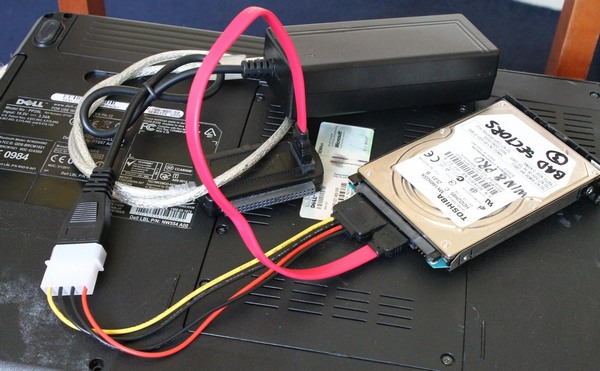
Dell laptops are reliable workhorses, but the drive inside them won’t last forever, and accidents happen. If your Dell won’t boot, can’t find its drive, or your files have disappeared, the right next steps make a real difference to what can be recovered.
What kind of drive is in your Dell?
Most current Dell laptops use an M.2 NVMe SSD: a small stick-shaped circuit board with no moving parts. Older models usually have a 2.5-inch SATA drive, which may be a traditional spinning hard drive or a SATA SSD.
This matters because the two fail differently. A hard drive often gives warnings: clicking, slowing down, freezing. An SSD frequently fails suddenly, with no warning at all, and simply disappears from the system. See our guides to NVMe and M.2 SSD recovery and hard drive recovery.
BitLocker and device encryption: find your recovery key
Many Dell laptops running Windows 11 or 10 have BitLocker or Windows device encryption turned on, sometimes without the owner realising. If the drive is encrypted, any recovery, by us or anyone else, needs the BitLocker recovery key to make sense of the data. Without it, the data can’t be read.
Before you do anything else, look for the key:
- For a personal laptop, sign in to your Microsoft account online and check the BitLocker recovery keys section.
- For a work laptop, ask your IT department; the key is often held in your organisation’s management system.
- Check for a printout or a saved file from when the laptop was set up.
Warning signs
- Clicking, grinding or buzzing from an older laptop with a hard drive.
- Very slow start-up, freezing, or files that won’t open.
- “No bootable device” or “no hard drive detected” messages, or the drive missing from the BIOS.
- Repeated automatic repair loops or a blue screen when Windows starts.
- Files gone after a reinstall, reset or repartition.
- A laptop that has been dropped or had liquid spilled on it.
What not to do
- Don’t keep restarting it. Every power cycle on a failing drive risks more damage.
- Don’t reinstall Windows or reset the laptop. This writes over the very data you want back.
- Don’t run chkdsk, repair tools or recovery software on a drive that is making noises or behaving erratically.
- Don’t keep using an SSD after deleting files. TRIM can permanently clear deleted data quickly.
- Don’t open the drive or try the freezer trick. Neither helps, and both can make recovery harder.
If the laptop has failed, switch it off and leave it switched off. Our guide to getting data off a failing drive explains more.
How we recover data from Dell laptops
We start with a free initial assessment, usually completed the same day, and give you a fixed, no-obligation quote before any recovery begins.
For a hard drive, mechanical faults are dealt with in our in-house cleanroom, with head and motor repairs where needed. For an NVMe or SATA SSD, we work on the controller and firmware using PC-3000 equipment, with board-level repair if the drive or its components are damaged. In every case we make a sector-by-sector copy and work from that copy, never the original. If the drive is BitLocker-protected, we use the recovery key you provide to access the data.
Your recovered files are returned on a new drive. We are registered with the ICO (ZA060744) and handle all data under UK GDPR. More detail is on our Dell laptop data recovery page.
Back up before it happens again
Once your files are back, set up automatic backups, for example to a cloud service and an external drive that you disconnect when not in use.
Talk to us
Get a free initial assessment and a fixed, no-obligation quote. Call 020 7064 4996 or book online, then drop the laptop off at our lab in London SE1 or send it by courier.