
How to Back Up Your Mac
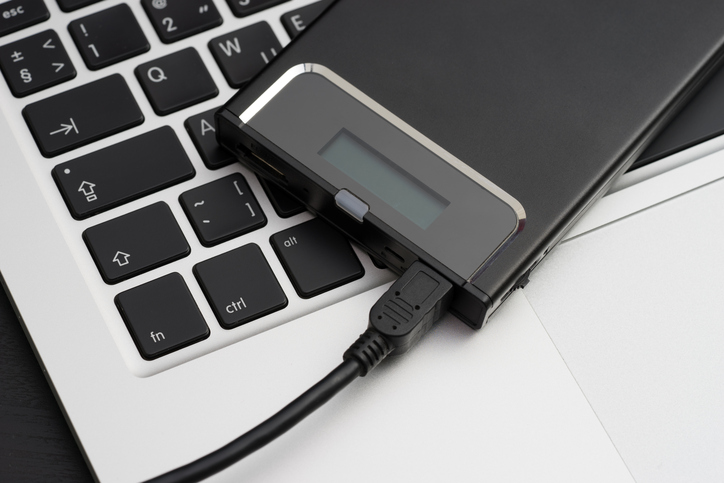
Backing up a Mac is easy to set up and easy to forget about, which is exactly how it should be. But on modern Macs it matters more than ever, because if the computer itself fails, getting data back off it is far harder than it used to be.
Why backups are critical on modern Macs
Older Macs had a separate hard drive or SSD that could be removed and connected to another computer. Macs with Apple silicon (M-series chips) and Intel Macs with the Apple T2 security chip are different:
- The storage is soldered to the logic board. There is no drive to take out and plug in elsewhere.
- The storage is encrypted by hardware tied to that board. The data can only be read by that Mac’s own chip.
So if the logic board fails, through liquid damage, a power fault or a failed component, the data can’t simply be copied off. Recovery may need board-level repair to get that specific Mac working again, and in some cases it isn’t possible at all. Apple repairs that replace the logic board also replace the storage, so the data on it is gone. A current backup is your real protection.
Time Machine: the built-in option
Time Machine is built into macOS and is the easiest place to start. It backs up automatically, keeps hourly, daily and weekly versions as space allows, and lets you restore individual files or a whole Mac.
- Connect an external drive (or have a compatible network drive available).
- Open System Settings > General > Time Machine.
- Click Add Backup Disk, choose the drive and turn on encryption for the backup.
- Leave it to run. Backups happen automatically while the drive is connected.
Time Machine can use more than one backup disk and alternates between them. Using two drives, with one kept somewhere else and swapped over regularly, gives you an off-site copy.
External and network drives
An external USB or Thunderbolt drive is the simplest Time Machine destination. A NAS on your home or office network can also act as a Time Machine destination if it supports it, which suits households or offices with several Macs. Remember that a NAS is still a local copy in the same building, and that external drives fail too, so they shouldn’t be your only backup. If one does fail, see our external drive recovery page.
The NCSC also advises disconnecting removable backup drives when they aren’t in use, so ransomware or an accidental deletion can’t reach them.
iCloud Drive is sync, not a full backup
iCloud Drive (including the option to store Desktop and Documents in iCloud) keeps your files available across your Apple devices. It is useful and adds an off-site element, but it is a sync service: delete or overwrite a file and the change applies everywhere. It also doesn’t back up your apps, settings or everything else on the Mac. Treat it as one layer, alongside Time Machine, not instead of it. Turn on two-factor authentication for your Apple Account.
A sensible Mac backup plan
- Time Machine to an external drive or NAS, encrypted, running automatically.
- An off-site copy: a second Time Machine drive kept elsewhere, or a third-party cloud backup service that keeps versions.
- iCloud Drive for convenience and sync across devices.
- Test now and then: open Time Machine and restore a file to make sure it works.
This follows the widely used 3-2-1 rule of thumb: three copies, two types of storage, one off-site. Our home backup guide explains it further.
If your Mac has already failed
If a Mac won’t start, has had liquid spilled on it or shows storage errors, switch it off and don’t keep restarting it. Don’t erase and reinstall macOS, and avoid letting a repair replace the logic board before you’ve decided about the data. Data Retrieval Ltd carries out board-level repair and Mac recovery in our London laboratory; see Apple Mac data recovery and MacBook data recovery.
We offer a free initial assessment and a fixed, no-obligation quote before work starts. Call 020 7064 4996 or book a case online.
Sources
- NCSC, Backing up your data