
How to dispose of an old hard drive or SSD securely
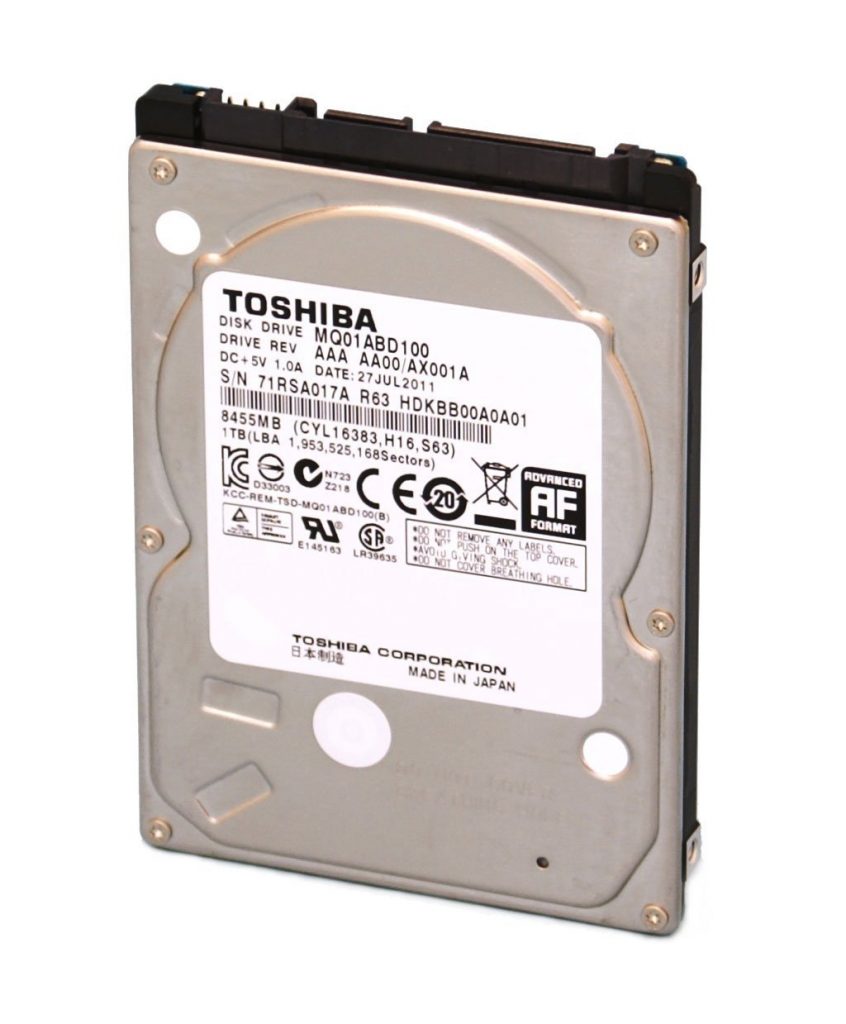
When you sell, recycle or throw away a computer, phone or drive, your data can go with it. Deleting files and emptying the bin does not remove them, and even a quick format leaves most data in place for anyone with recovery software. Faulty drives are a particular risk: they are often assumed to be useless, yet a recovery lab can frequently read them. Here is how to dispose of storage safely.
Why deleting and formatting is not enough
When you delete a file, the operating system usually just marks the space as free. The data stays there until something else overwrites it. A quick format does much the same for a whole drive. That is good news when you delete something by accident, and bad news when you pass a drive on to a stranger.
Second-hand drives and computers are regularly found to contain the previous owner’s documents, photos, emails and passwords. Broken drives sold cheaply as spare parts are no exception.
Step one: keep what you need
Before you wipe anything, make sure everything you want is safely copied elsewhere, and check you can open it. Once a drive has been properly erased or destroyed, the data is gone for good. If the old drive is faulty and holds files you still need, get them recovered first; see our hard drive recovery page.
Wiping a working hard drive
For a traditional spinning hard drive that still works, you have two good options:
- Overwrite the whole drive using a reputable disk-wiping tool that writes over every sector, not just the free space. Check the tool’s report to make sure it completed without errors.
- Use the drive’s built-in Secure Erase command, available through many manufacturer utilities and disk tools, which tells the drive to erase itself.
If the drive has bad sectors or will not complete the wipe, treat it as a faulty drive and destroy it.
Erasing SSDs and NVMe drives
SSDs are different. They spread writes across the flash memory and keep spare areas you cannot reach, so simply overwriting the drive from your computer does not reliably erase everything. Instead:
- Use the drive’s built-in secure erase or sanitise function, usually through the manufacturer’s own utility. This erases all flash cells, including the hidden spare areas.
- Use encryption and a crypto erase. If the drive has been fully encrypted from the start, for example with BitLocker or FileVault, or is a self-encrypting drive, destroying the encryption key makes the data unreadable. Many secure erase commands work this way.
Macs with Apple silicon or a T2 chip encrypt their soldered storage by default. Using the built-in option to erase all content and settings removes the keys, which makes the old data unreadable. Modern phones and tablets work in a similar way: a factory reset on an encrypted device is effective, as long as encryption was turned on.
Faulty and dead drives: physical destruction
A drive that does not work cannot be wiped, but the data on its platters or chips is often still readable with the right equipment. For faulty drives, and for any drive holding sensitive data, physical destruction is the safest route:
- Use a reputable destruction service that shreds drives into small fragments. SSDs, memory cards and phones need finer shredding than hard drives, because the data sits on small chips.
- Get a certificate of destruction listing each device, ideally by serial number. This is your record that the data was disposed of properly.
- Do not rely on a hammer or a drill. Damaged platters can still yield data, and flash chips are small enough to survive.
- Do not sell or give away faulty drives, even for spare parts.
Businesses: your UK GDPR responsibility
If a device holds personal data about customers, staff or anyone else, your organisation is responsible for it under UK GDPR until it has been securely erased or destroyed, including when you hand it to a third party for disposal. In practice that means:
- keeping an inventory of devices that store data, including old laptops, phones, servers, NAS boxes and backup drives;
- choosing an erasure method that suits the type of device;
- using a reputable disposal company under a written contract, and keeping certificates of destruction;
- recording what was disposed of, when and how.
The ICO publishes guidance on erasing and destroying personal data, which is worth reading before you set or review a disposal policy. Losing personal data through careless disposal can be a reportable data breach. Our business backup guide covers keeping data safe while you still need it.
Need files from an old drive first?
We recover data from hard drives, SSDs, laptops, phones and more, working from a sector-by-sector copy and handling your data under UK GDPR (ICO registration ZA060744). We offer a free initial assessment and a fixed, no-obligation quote before any recovery starts. Call 020 7064 4996 (Mon–Sat 09:00–18:00) or book your case online.