
How to get data off a failing hard drive safely
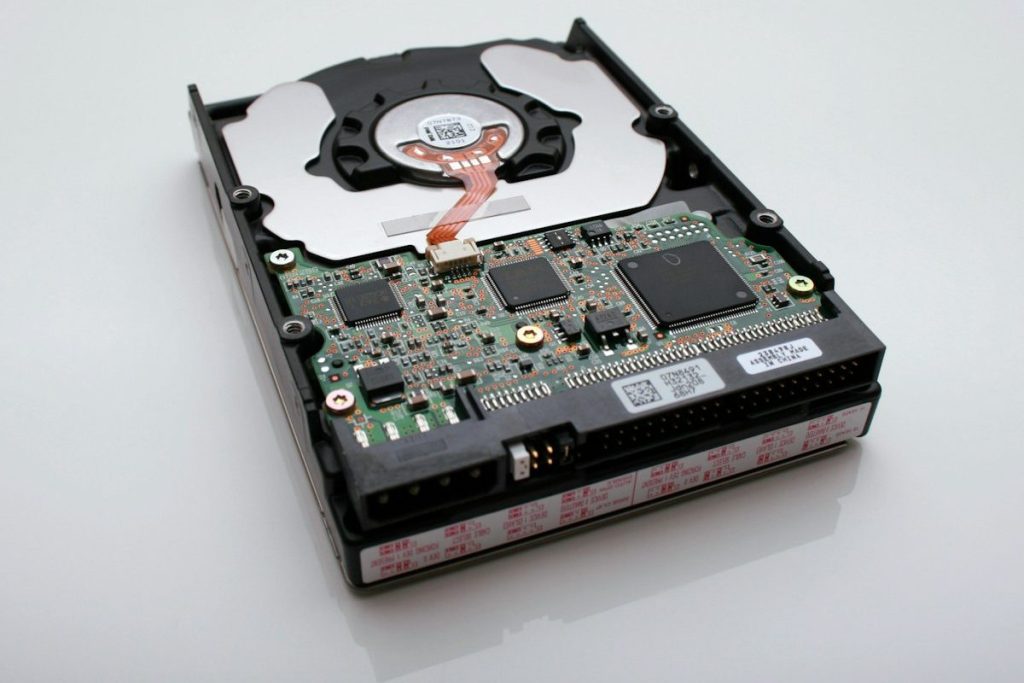
When a hard drive starts to fail, every hour it keeps running can make recovery harder. The good news is that a failing drive does not usually mean your files are gone. The bad news is that the most common instinct, to keep trying things, is often what turns a recoverable drive into an unrecoverable one. This guide explains how to spot the signs, what you can safely do yourself, and when to stop.
Warning signs of a failing drive
- New noises: clicking, ticking, grinding, screeching or repeated spin-up and spin-down sounds. See our guide to a clicking hard drive.
- Slowdowns and freezes, especially when opening files or folders.
- Files that will not open or are reported as corrupted, and folders that appear empty.
- Crashes and blue screens, or a computer that will not boot.
- The drive disappears or is not recognised, or Windows or macOS asks to format it.
- SMART warnings from your operating system or a monitoring tool.
SSDs and NVMe drives are different: they often fail with no warning at all, simply vanishing one day. With TRIM enabled, deleted data on an SSD is cleared quickly, so time matters even more.
Physical or logical failure?
It helps to know which kind of problem you have.
- Logical failure: the hardware is fine but the data is not accessible: accidental deletion, formatting, a corrupted file system, a failed update or malware. The drive sounds normal and is usually detected.
- Physical failure: something inside has gone wrong: worn or damaged read/write heads, a seized motor, degraded platters, a failed circuit board, or firmware faults. Typical causes are age, wear, drops, power surges, heat and water. Physical faults often bring noises, a drive that is not detected, or one that slows to a crawl.
Malware can delete or encrypt files, but it does not cause mechanical failure. If your drive is clicking or grinding, the problem is physical.
What you can safely do
- Stop using the drive. Every read and write on a weak drive adds wear, and new data can overwrite what you are trying to recover.
- Check your backups first. If you have a recent copy in the cloud or on another drive, you may not need recovery at all.
- Check the simple things. On an external drive, try a different cable, port and power adapter once. A faulty enclosure or cable sometimes looks like a dead drive.
- If the drive is still working normally and sounds healthy, copy your most important files to a different drive straight away, smallest and most valuable first. Do it once; do not keep retrying folders that fail.
- If you use recovery software for a logical problem, only do so on a drive that is physically healthy, and always recover to a different drive.
What not to do
- Do not run chkdsk, First Aid, disk repair or error scans on a failing drive. They make heavy demands on weak heads and can rewrite file system structures, making recovery harder.
- Do not defragment. It moves huge amounts of data around and puts serious strain on a struggling drive.
- Do not keep power cycling or repeatedly reconnecting the drive to see if it comes back.
- Do not open the drive. Dust and fingerprints on the platters cause permanent damage. Drives must only be opened in a cleanroom.
- Do not swap circuit boards from another drive. Modern boards carry drive-specific data, and a mismatched board can make things worse.
- Do not put it in the freezer. The freezer trick does not work on modern drives and condensation can cause further damage.
- Do not format or reinstall the operating system on the drive you want data from.
Laptops and Macs
Many modern laptops use soldered storage. On Macs with Apple silicon or a T2 chip, the storage is soldered to the logic board and encrypted, so the data cannot be read by simply removing a drive. Recovery usually means getting the original board working. See our Mac data recovery page.
Cloud is not a substitute for a plan
Cloud services run on physical servers too. They are reliable, but not failure-proof, and a sync service can copy deletions or corruption across all your devices. Use the cloud as one part of a backup routine with more than one copy, and check that you can actually restore from it.
How professional recovery works
In our lab we diagnose the fault, carry out any head, motor or board-level repairs in our in-house cleanroom, and then use PC-3000 equipment to make a sector-by-sector copy of the drive. We work from that copy, never the original, and return your files on a new drive. Read more about how hard drive recovery works.
Get your data back
We offer a free initial assessment, with diagnosis usually the same day, and a fixed, no-obligation quote before any recovery starts. Drop your drive off in London or send it by courier. Call 020 7064 4996 (Mon–Sat 09:00–18:00) or book your case online.