
How to check the health of your hard drive or SSD
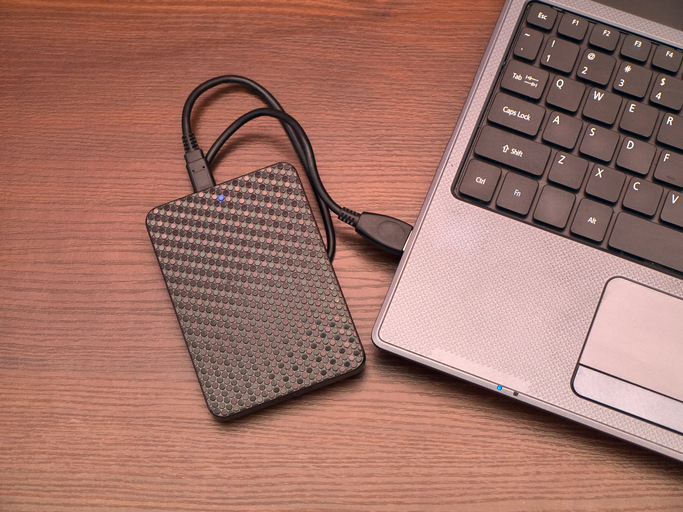
Every drive fails eventually, whether it is a spinning hard drive or an SSD. Checking its health now and again will not stop that happening, but it can give you time to copy your data and replace the drive before it lets you down. Here is how to check hard drives, SSDs and NVMe drives, and how to read what the tools tell you.
How long do drives last?
There is no reliable figure for how long a particular drive will last. Lifespans vary with the model, how hard the drive is worked, heat, power quality and plain luck. Cloud backup providers that run very large numbers of drives, such as Backblaze, publish drive failure statistics, and they consistently show that failure rates vary by model and by age. Some models are noticeably less reliable than others, and failure becomes more likely as drives get older.
The practical lesson is simple: a health check is a useful early warning, but it is not a prediction you can rely on. A good backup matters far more than any estimate of remaining life.
SMART: the drive’s own health report
Almost every modern hard drive, SSD and NVMe drive supports SMART (Self-Monitoring, Analysis and Reporting Technology). The drive keeps track of its own condition and reports it through a set of attributes. A health tool reads these and flags anything worrying.
Hard drive attributes worth watching
- Reallocated sectors: areas the drive has had to replace with spares. A rising count is a warning sign.
- Current pending sectors and uncorrectable errors: areas the drive is struggling to read.
- Spin retry count: the motor needing more than one attempt to spin up.
- Temperature: drives that regularly run hot tend to wear faster.
SSD and NVMe health
SSDs wear differently because flash memory can only be written a limited number of times. Their SMART data focuses on:
- Percentage used or remaining life, an estimate of how much of the rated write endurance has been used.
- Available spare: spare flash blocks left to replace worn ones.
- Media and data integrity errors and any critical warning flag.
- Total data written compared with the manufacturer’s endurance rating.
The important difference is that SSDs often fail suddenly, usually because the controller fails, with no warning in SMART at all. A clean health report on an SSD is reassuring, not a promise.
Tools to check drive health
- Windows: recent versions of Windows show drive health and estimated remaining life for NVMe drives in the storage settings. Free SMART utilities give a fuller view for all drive types.
- macOS: Disk Utility and System Information report a basic SMART status for internal drives. Third-party utilities show more detail.
- Linux: the smartmontools package (smartctl) reads full SMART data from hard drives and NVMe drives.
- Manufacturer tools: most drive makers offer free utilities for their own drives, which read health data, update firmware and run diagnostics. Use the official tool for your brand.
Reading SMART data is harmless. Long surface tests and repair options are different: they work the drive hard, and on a drive that is already struggling they can push it over the edge. Manufacturers do not accept responsibility for data lost while using their tools.
Warning signs to act on
- Clicking, grinding or repeated spin-up noises from a hard drive.
- Files that will not open, folders that appear empty, or frequent freezes.
- The drive disappearing and reappearing, or very slow file copies.
- Any SMART warning, a rising reallocated or pending sector count, or an SSD running low on spare blocks.
- An SSD that has become read-only, which some drives do deliberately when they are worn out.
What to do if a check shows a problem
A warning does not mean the drive will fail tomorrow, but you should assume it is on its way out.
- Back up your important files straight away to a different drive or the cloud, most important first.
- Do not run repair tools, chkdsk or defragmentation on the affected drive.
- Replace the drive once your data is safe.
- If the drive is making noises or files will not copy, stop and get professional help. Our failing drive guide explains why.
Prevention: back up, then monitor
Health monitoring is a useful extra, but backups are what protect your data. Keep at least two copies of anything important, with one away from the computer, and check that you can restore from them. Our guide on how to back up your data is a good place to start.
Drive already failing?
We recover data from hard drives, SSDs and NVMe drives. We offer a free initial assessment and a fixed, no-obligation quote before any recovery starts. Call 020 7064 4996 (Mon–Sat 09:00–18:00) or book your case online.