
Drobo BeyondRAID Data Recovery
BeyondRAID is what made Drobo easy to use – and what makes Drobo hard to recover. Instead of a fixed RAID level, a Drobo splits every drive into small regions, decides for itself how to protect each piece of data, and keeps a private map of where everything is. That map, not a standard RAID layout, is what your files depend on.
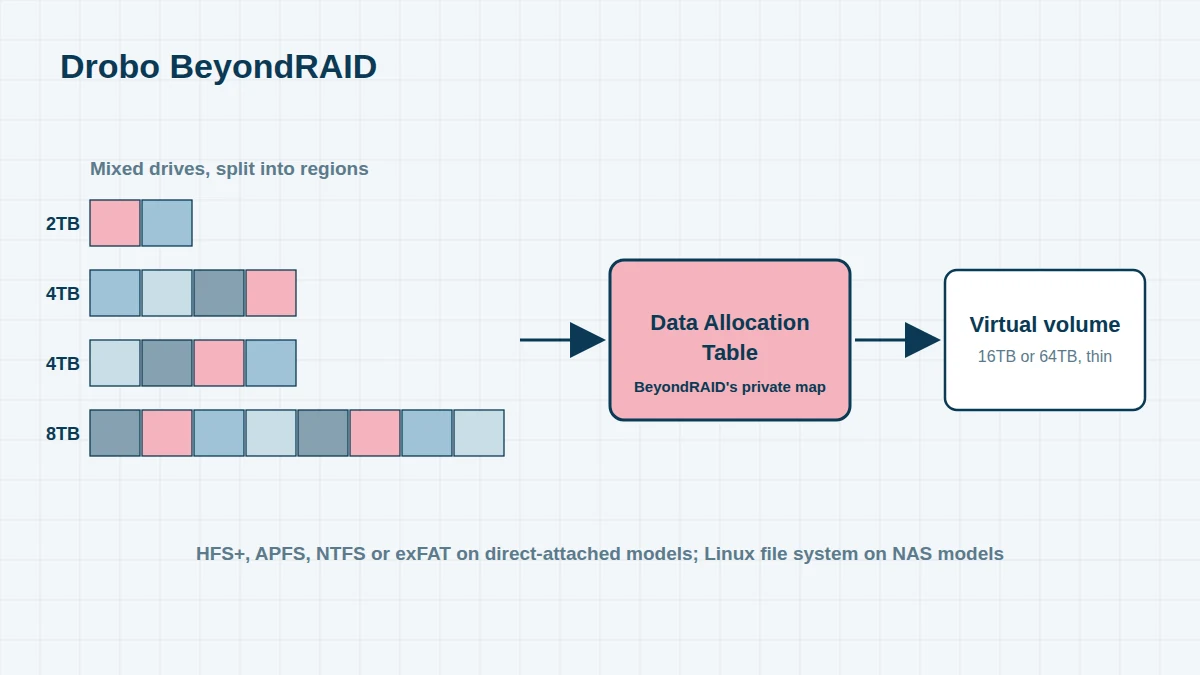
No operating system can read a Drobo disk pack on its own, and ordinary RAID recovery software doesn’t understand it. Recovering a Drobo means reading and interpreting BeyondRAID’s own metadata.
How BeyondRAID Works
- Mixed drive sizes – each drive is divided into regions, and data is protected across whichever drives have space, so capacity from a 2TB and an 8TB drive can be combined
- Single or dual disk redundancy – chosen by the user, with the Drobo re-laying out data automatically when drives are added or fail
- Thin provisioning – the Drobo presents a large virtual volume (16TB or 64TB depending on the model), much bigger than the space actually available
- A Data Allocation Table – BeyondRAID’s private map recording which chunk of data lives where. It changes every time the Drobo re-lays out data
- The file system on top – on direct-attached Drobos (5D, 5D3, 5C, 8D, Mini), your Mac or PC formats the virtual volume as HFS+, APFS, NTFS or exFAT. On NAS models (FS, 5N, 5N2, B810n), the Drobo formats it with a Linux file system
Why Drobos Fail the Way They Do
Because the Drobo constantly relocates data, a drive that fails part-way through a re-layout can leave the map describing a layout that was never completed. Power cuts during this process, a failing accelerator SSD, or several ageing drives failing close together are the most common causes of a Drobo that won’t mount. The data is usually still on the drives – the Drobo has simply lost confidence in its own map.
How We Recover a Drobo
- Image every drive, repairing failed drives in our cleanroom first
- Locate and read the BeyondRAID metadata on each drive, including older copies of the map
- Choose the most recent consistent version of the map and use it to reassemble the virtual volume
- Repair and read the HFS+, APFS, NTFS, exFAT or Linux file system on top
- Verify your key folders with you before copying the data to a new drive
Moving Away from Drobo
With Drobo gone, every working Drobo is on borrowed time. If yours still works, copy your data off now – ideally to two places. For a replacement, a Synology or QNAP NAS with SHR or RAID 6, or a Thunderbolt RAID enclosure for Mac users, offers similar convenience with ongoing support. See Synology, QNAP and G-RAID.
Frequently asked questions
My Drobo shows red lights on two bays. Is everything lost?
Not necessarily. With single-disk redundancy two failures stop the Drobo, but the failed drives can often be repaired enough to image them, and the BeyondRAID layout can then be rebuilt.
Can I read a Drobo drive by connecting it to my computer?
No – a single Drobo drive holds only fragments of data in BeyondRAID’s own format. Connecting drives to a computer can also prompt it to initialise them, so please don’t try.
Does it matter which bay each drive was in?
It helps, so please label them. But the BeyondRAID metadata records each drive’s identity, so we can still recover if the order has been mixed up.
Free assessment, no obligation. Call 020 7064 4996 or use the form on this page – an engineer will tell you what can be recovered and what it will cost. Book online · Pricing · Locations